Showing posts with label iTunes. Show all posts

April 23, 2010

Plugged!: The iTunes Weekly Rewind

Music is a wonderful thing, but let's be honest: there's also much garbage to sift through before you get to the good stuff. While not talking to all musical tastes, Apple's own iTunes Essentials staff want to tell you that there's actually quite a bit of music that direly needs a little loving and a little listening. This is where the dead singles and overlooked album tracks come to life; this is The iTunes Weekly Rewind.

With 82 episodes under its belt, it's obvious that the several people running the show have a lot of musical knowledge under their belts, and that's because the episodes tend to lean more on older artists than they really do new ones. I mean, yes, they do cover a lot of new artists, but they constantly add older ones into the mix- and sometimes in just one unprecedented sentence- and you can really hear just how passionate they want you to listen to this/these artist(s), and how you'll definitely come to appreciate a lot of the music being featured.

The unfortunate thing is that despite several months of listening in on the conversation, I still can't quite remember much of the names of the podcasters, and that's a bit of a shame. It's not that their talk isn't interesting, hell, far from it, but it's just that I can't really get myself to remember their names, except for the sole female voice that is Tanyer Tomas (sorry if I butchered the spelling) who usually starts and ends the show.

No matter what music you like though, the team always talks about various artists, happenings and topics that let them really analyze the musical identities and history that comes with each. They don't really take a definitive stance on anything (which feigns a feeling of neutrality), and you'll be surprised at just how well their Genius feature works (why can't I get my Genius feature to work as good as theirs?!) and that's because in every episode they'll also process a certain song by a certain artist through iTunes' Genius feature and talk about the resulting playlist.

Music fans will find it easy to geek out with these clearly passionate people, and the potential for discovering a new artist or an old, overlooked song is always absolute.

I highly recommend listening to this 30-40 minute podcast, because every episode manages to pack a lot of information and music samples in a coherent package. Heck, this is the podcast that had me convinced that Lady Gaga is a legitimate artist, so you'll be surprised at some of the things they'll say that you'll somehow agree to.

Here's the iTunes link for the podcast. [Link]


September 10, 2009

iTunes 9 I Like.

Even though the weight of the update is a bit unfathomable (EIGHTY-FIVE-POINT-FIVE MB'S?!), the new features added to the venerable iTunes application are actually pretty good.

True, the facelift made to the app itself is actually very creepy (I'll have to get used to that gloss. It's excessive.), the facelift made to the Store is very much welcome.

With a new iTunes Store revamp, comes a new iTunes Store feature: iTunes LP. Includes album specific liner notes, essays, photos, and videos. Basically, in modern terms, it's like a DVD menu for your (legally downloaded) music geared for the nostalgic bunch.

The new update also features Home Sharing which lets you sync libraries across different authorized computers. That means, music, movies, TV shows, even apps! Yes, my friend, this isn't just limited to streaming, this is actual copying! And it's legal!

The enhanced syncing makes for more granular choices, which I really love. This is the best thing that's ever happened to iTunes. I mean, now I can just leave my settings to actually sync my music instead of having to drag and drop every single damn time I install a point release.

What's even better is the fact that I can finally organize my apps through my computer which is just awesome.

Go download it now if you use an iPod, especially if it's running on iPhone OS.


June 9, 2009

iTunes for iPhone: Now with Movies

It's probably the whole iTunes Store in your palm now that Apple has announced that Movies, TV Shows, Audiobooks and iTunes U are all available for download in the iPhone iTunes Store. You can also rent or purchase movies directly through your device, which is pretty cool if you live in the US.
Now, Apple, I have a question: WHEN WILL YOU BRING THE iTUNES STORE TO ALL THE COUNTRIES THAT HAVE AN APP STORE?!

May 8, 2009

Podcasts on iTunes: My hard drive!

The main thing about people who subscribe to podcasts is that they typically don't erase past episodes of a podcast until Windows or OS X will say, "Your hard drive is almost full.". True, one could just go inside a podcast and erase all those past episodes, but why don't you save yourself some time and let iTunes do the erasing for you?

iTunes is very accomodating to your needs. You could set it to just retain the most recent episode of a podcast, all unplayed episodes of a podcast, etc. How do you do it, then?

1) Again, go to the Podcasts menu.
Now, there are two things you can do. It will depend on whether you want to set the default options for all podcasts, or just set the options for a specific podcast.

If you want to apply a few settings to all your podcasts, here's what you should do:
2a) In the Podcasts menu, click the "Settings..." button found at the lower-left side.
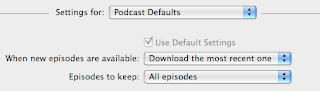
The dialog box below will appear.
So let's cover the anatomy of this dialog box so you could have more precise control over podcast management.

The first drop-down box lets you set the frequency of refreshing. Basically, iTunes looks for new episodes of every podcast through refreshing, and you can set how frequently iTunes will do so.
You can set it to look for new episodes every hour, every day, weekly, or never. "Manually" is basically "never" because it basically tells iTunes not to refresh unless you actually click the "Refresh" button found on the lower-right side.

The second drop-down box named "Settings for" lets you set the settings that will apply to either all podcasts or just one specific podcast.
In other words, if you select "Podcast Defaults", it will display the default settings that will automatically apply to all podcasts. Of course, if you set a specific preference for a specific podcast, it will not be affected by "Podcast Defaults" unless that specific podcast has the "Use Default Settings" checkbox.

For comparison (top, default settings; bottom, settings for a specific podcast):
You see, the podcast "The Apple Byte" doesn't comply to the settings that are made to the "Podcast Defaults" because it doesn't have the "Use Default Settings" checkbox ticked. Since it doesn't have the checkbox ticked, it doesn't have to comply with the default settings, because if the checkbox is indeed ticked, the settings are blocked out.

Going back on topic (and I even copied the dialog box to the bottom of this sentence so you can remember!), the third drop-down box lets you set whether iTunes will only download the most recent episode of a podcast when new episodes are released.
Confused? Well, let's say a podcaster released two new episodes while you weren't in front of your computer and running iTunes.
The next time you open iTunes, it will by default download the more recent of the two episodes and not the other one. If you set this drop-down box to "Download all" however, it will download both episodes. "Do nothing" will of course, command iTunes not to download any new episodes, and will wait for you to just access the specific podcast and click "Download" before actually downloading anything.

3a) And now, the last drop-down box of the dialog box involves the "hard disk management" options, simplified to say "Episodes to keep".
You can set iTunes to keep just 3 recent episodes of a podcast or just the most recent one. Maybe all the unplayed ones too.
Whatever the case, iTunes will automatically delete old episodes to comply with your conditions. So if you clicked "Last 3 episodes", the podcast (or podcasts) will delete all those old episodes and just retain the 3 most recent episodes.

But another way to set the settings of a specific podcast involves:
2b) Double-clicking the podcast you want.
3b) Clicking "Settings..." on the lower-left part of the window.
(Enlarge this picture by clicking on it)

4b) ...and setting the settings that you want. Just remember to uncheck "Use Default Settings" though.
When a new episode is downloaded, all those other episodes will get deleted. It doesn't always work when you've already downloaded lots of episodes, which is why it would be better to already set the settings when you first subscribe to a podcast.

At least you'll be able to not blame your hard drive problem on your podcast collection!

May 7, 2009

Podcasts on iTunes: Time fer sum diggin' mateys

If you own an iPod, music phones or branded MP3 players that aren't sold elsewhere except Asia, you've probably asked yourself, what are podcasts?

It is, if you use iTunes, signified usually by that icon at the left side of this text. Basically, it's like listening to Internet radio without the need of having to be online all the time. True, they're just MP3's that can be played by any player, but the different thing about podcasts and regular MP3's lie in the delivery of them.

If you know your jargon, it's just RSS but using audio or video.

So if you have iTunes or Zune or Winamp, they'll be able to let you subscribe to podcasts. Subscribing basically lets your program download the latest podcast a podcaster (aka, the creator of the podcast) churns out. It's like being able to receive the latest issue of a magazine without having to get your ass out the door and into National yourself- the publisher simply puts it in your doorstep.

That's basically how subscribing to a podcast works. But how to find the perfect podcast?

On iTunes, you can freely access the iTunes Store and listen to 30-second samples of your favorite songs. You'll have to buy them so you can legally enjoy them, but since I'm talking about it in the Filipino sense, it's near impossible to do so. If you explored the Store, you'd actually know that.

But Podcasts are different. iTunes doesn't require you to go to your own country's iTunes Store, nor will it want you to register/log on to your iTunes account. It's just download, subscribe and go (and yes, both Windows and Mac versions of iTunes have 24/7 access to these for free).

Here's a step-by-step guide on how to see iTunes' diverse (and did I mention, hella large?) podcast collection:

1) Open iTunes
After opening iTunes (and for Windows users, waiting for a long time for it to open), you'll have two valid routes of passage to the podcast directory. It could either be:

2a) Go to "Podcasts" and...

3a) Click "Podcast Directory" located on the lower right side.
Or...

2b) Go to the "iTunes Store" and...

3b) Click "Podcasts" on the left bar.
Now that we've found access to Podcast-ville, where do we start our journey?
For starters, you'll obviously see a lot of featured content on the page at first glance, and later on you'll also be able to see the Top 20 podcasts of the day, categories, and even links to Apple's own podcasting FAQ's.

While one will definitely start with the Top 20 list, the better thing to do would be to scan the Categories Apple offers, so you can narrow down the podcasts to the ones you actually have an interest in.
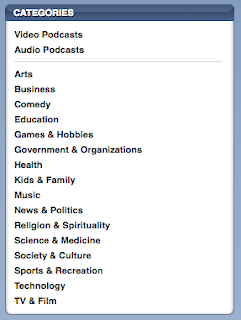
There are a lot of categories to choose from, as you can see. Once you pick a category you're interested in, you can swoop into several of the podcasts that fall under that category.

But how to pick a podcast that's actually good? Even if it does fall under a category you pick, not all podcasts are made equal, so some suck and some are good. Now, this is where iTunes reviews come into play.

True, reviews by real people are not really all that credible, but you could always preview the whole episode of one podcast before you decide to both Download and Subscribe.

So let's say that we have finally picked a podcast that seems interesting.
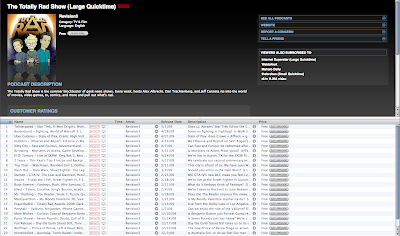
If you have doubt, you can also read the customer reviews by scrolling down.
Sold by the reviews? It might be time to actually press that button... that small "Subscribe" button. If not, you could also sample an episode by just randomly double-clicking any episode listed below the information. I advise you to sample the episode/s before the topmost one (the topmost one is the most recent one) just to make sure that if you like it, you can start subscribing to the podcast and watch the latest episode.
Loading times will, of course, depend on your Internet speed. Audio will naturally load faster while video will take a while.

If you're finally sold on the sample of the episode, you can press the Subscribe button by finding it (clue: it's beside the word "Free" near the album art of the podcast).
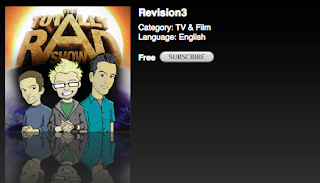
iTunes will load a bit and will ask if you really want to Subscribe to the podcast. This is probably in case if you accidentally click the button. If you are really sure, press the Subscribe button again and iTunes will automatically download the latest episode of a podcast, as well as future episodes of it.
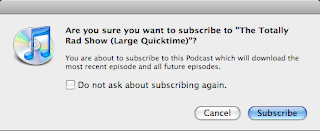
Fortunately enough, you also have to option of telling the dialog box to mind its own beeswax. If you want to subscribe to a podcast, you really want to, right? Check that box that says "Do not ask about subscribing again." over there if you plan on subscribing to more, then.

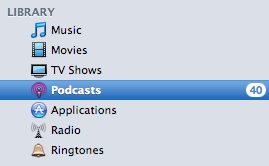
iTunes will once again load for a bit and finally start downloading. If it finishes, you'll be able to know through a number badge marked at the right side of "Podcasts".

That number badge basically tells you the number of "New" podcasts; podcasts you have yet to view/listen to.

And now, the cycle repeats... until you start getting sick of a podcast.

Unsubscribing
So let's say a podcast's novelty has become lost on you. You start asking yourself why the hell you wanted to download that podcast in the first place. You go crazy knowing that iTunes has started downloading its next episode, and you just wish that the madness would stop.

Don't lose hope, kiddo.

1) Go to the "Podcasts" menu.
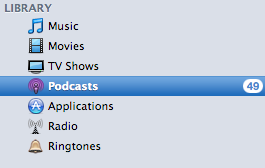
2) Click on the thumnail of the offending podcast. A blue marker should indicate its selection.
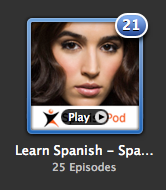
3) Now click unsubscribe in the lower-left corner.

It will turn into "Subscribe" again, but since you don't want to subscribe to it anymore, ignore the button.

"Unsubscribe" basically stops iTunes from automatically downloading the next episode and doesn't delete the entire contents of the podcast. The deletion will have to be up to you- and you'd probably know by now as to how you can delete stuff.

April 25, 2009

13-year old wins Apple promo; people start acting like one

13-year old Connor Mulcahey won Apple's "Billionth App" promo by downloading the app Bump. This app is able to switch contact information to another contact. Apple awarded him with 10000 dollar iTunes credit, an iPod touch, a 17" MacBook Pro and a Time Capsule, effectively making the prizes worth about 15000-17000 US dollars.

Obviously, other people feel left out and have started to throw fits. Honestly, it's funnier to read what they say than looking at the Apple counter.

A sampler:

"this sucks"
"I wonder if the kid even knew there was a contest"
"THE CONTEST WAS NOT FAIR"

March 11, 2009

Behold the new iPod shuffle

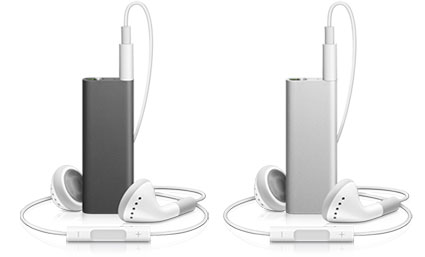
Apple's most affordable product (arguably ever) is the iPod shuffle, and now it gets a new form factor, a bigger capacity and a voice.
Notice anything different? Well, it's smaller but longer and it actually looks like a really thin USB thumb drive. Yes, it's actually buttonless. The controls are now relegated to the headphones apparently, and it will use the control scheme utilized by Apple's In-Ear Headphones with Mic and Remote. It can now store 4GB worth of songs, and it costs just 79 dollars (4000 pesos).

Unfortunately, there are only two colors: black and white, but it still retains the famous belt clip (which now sports the Apple logo and is really shiny) and it adds a new feature called VoiceOver.

VoiceOver tells you what song will be playing next, and for the first time it will support Playlist syncing as well.

A Guided Tour is now available in the Apple web site if you're interested.

March 5, 2009

Some Filipino and Asian-centric apps for your iPhone

We now focus our eyes on some low-profile releases by Filipino developers or some Asian-centric apps. Just a teeny collection. Hell, maybe I could get this going on a regular basis?
Supermarket Manila
#1 on the Philippine App Store charts for paid apps, this game has a polish to it. The premise here is that you own a supermarket, and that you have to manage it. I know, it's a bit of a rip-off to games like Diner Dash, but hey! It looks like a decent rip-off with a Filipino flavor, I'm guessing. It costs $1.99.

Philippine Travel Guide
The Philippines has its own wonders and sights. So why not get yourself a mobile travel guide while you get out during summer?
You don't need an Internet connection, either. $0.99 on the App Store.

CX Mobile
Bring a football spin to your average travel guide with Cathay Pacific's CX Mobile.

It gives you everything you'd want to know when traveling to Hong Kong- probably a location you'll be going to when talking about going abroad- and it has Google Maps support. Ooh, it looks like a great companion to the free Lonely Planet Mandarin Phrasebook! It costs zilch.

TVU Player
iPhone gets live TV! And many Philippine channels work best. You can't watch on landscape though.
The thing is that you can only run this under Wi-Fi, but with my tests, I never got anything to really run. Just a loading screen. Still, several reviews state that it works, and many of the working channels are Asian. For me, at least.

Classical Philippines Radio
This free app gives you all the folk songs you want. Although they're not my cup of tea, I know that some people will want this.

Wonder how old and classic this throwback iPhone radio station gets? Does it still have Pilita Corrales in there somewhere? Or is it purely songs of the Paruparong Bukid variety?

Filipino Phrases: How to Argue, Use Slang, and More!
It's an almost 1200 word list of Filipino phrases fit for daily use.
Unfortunately, the page says, the "argument" part only reaches to "bwisit". Will it cause an uproar if they included other... "phrases"? Maybe in a tiny scale, but otherwise, no. This app is more aimed to people who want to LEARN the language. It costs $3.99.

DianHua
Ever encountered a Chinese word that you found foreign and that you want to get a translation without having to resort to the Internet nor a bulky dictionary? Well, look no further than the free DianHua Chinese-English, English-Chinese dictionary! It has saved my ass a couple times.

Wan Nian Li Chinese Calendar
Want to specifically know when the Mooncake Festival comes? Well, a Lunar calendar does that job for you. There are many, I know, but I randomly picked this one. :p

That's about it, I guess. Tune in next time, if there is a next time.
 
Elegant de BlogMundi