Showing posts with label new features. Show all posts

March 20, 2009

Internet Explorer 8 is final

The new version of Internet Explorer has just come out of beta and is a seriously huge step for a company like Microsoft. While it still has problems handling JavaScript (and thus, it doesn't pass the Acid3 web standards test), it has several end-user features that people will definitely like.

OK, maybe most of these features have already existed in the form of a Firefox extension (but some IE8 features were inspiration for some extensions as well) or just derived from several browsers outright (but then again, I'm not complaining about that), but it definitely lays some innovations in the table. And yes, those features just might be worth the traditional reboot after installation.

Web Slices
Just as Safari lets you select a part of a webpage to post into Mac OS X's widget environment, Internet Explorer 8 lets you get up to date on the several parts of a specific website. A fine example of what you can do with Web Slices is shown above.

Unfortunately, you'll have to install this add-on as it isn't built-in with the browser.

Accelerators
Although it's present in specialty browsers like Flock, Internet Explorer 8 gives the masses a more comprehensive list of shortcuts or "accelerators" to choose from. Let's say you don't know the meaning of the word "schadenfreude" and you see the word on a webpage. Double-click that word and several options will appear. It's either you blog it, find it on Wikipedia, etc. etc. etc..

Domain Highlighting
It sounds like a subtle cosmetic change, but it's a rather important security feature. Why? Because usually people don't get conscious of the URL when they could be accessing a fake site, I mean, you can know if a website is phishing you and stealing your information by just looking at the URL, but one will not do this always especially when the domain name isn't even noticeable. OK, Chrome users already know this, but since IE8 is a mainstream browser, it's all for the good.

Color-coded tabs
Complementing the domain highlights are the color-coded tabs. Basically, IE8 gives websites of the same domain the same color of tabs, so you can know whether that website you just accessed suddenly brought you to a fake version of it. In theory, that is.

Compatibility mode
Since Microsoft made Internet Explorer 8 a little more standards-compliant, there is bound to be a few issues involving old websites designed for older Internet Explorer versions. You can access this via a button beside the Refresh button. Just hope that you won't mistaken the two of them.

Individual tab management
While IE8 won't be able to let you rip tabs to form another window, you'll be able to have the benefit of a feature similar to Chrome. Let's say a tab froze up because of a plug-in like Adobe Reader or Flash. Usually, you'll have to press Ctrl+Alt+Del and terminate all important data in all the other tabs, well not anymore. You can just exit that tab and continue the work you've been doing in the other tabs.

InPrivate Browsing
Just like Safari's Private Browsing and Chrome's Incognito mode before it, Internet Explorer lets you surf like a rockstar without leaving evidence. Still, the parents have the upper hand if they are tech-savvy, because they can enable Parental Controls and simply disable this feature.

Cross-site scripting filters
Internet Explorer 8 promises to be the most secure browser in the planet, and the efforts show. With cross-site scripting filters ("cross-site scripting" involves one site sending err, messages to another one, hackers may use this system to put malicious code into genuine websites), Internet Explorer 8 finds out whether this is occurring and stops you from going inside the site.

Smart Search
Now when you type a search term, Internet Explorer gives you results as you type- and they're illustrated too!

Admittedly, I won't go back to Internet Explorer unless I'm desperate, but version 8 is very compelling nonetheless. Download it now.

February 25, 2009

Safari opens 4 beta

It's the proud granddaddy of the Private Browsing mode... it's Safari!

The public beta for the newest version of Apple's browser Safari is available for download for both Mac and Windows. There are some interesting new features that may somehow resemble other browsers such as:

Top Sites
Taking a cue from Chrome's home page and Opera's Speed Dial, Top Sites gives you an elegant view of the sites you visit the most.
This twist here, however is the fact that you can display up to 24 thumbnails, you can pin a site you like into a position so it will stay and place and you can see whether a site has new content when a star is clipped on the top-right of the website's thumbnail! That sounds really cool for people who usually go to sites like Twitter, Blogger, or any news site.

Cover Flow
While highly unnecessary, it's still pretty nice to be able to browse your history, bookmarks, etc. on this view. This way you are able to actually get a huge thumbnail of the website in question.
Full History Search
This feature lets you search your history as you saw it. If you remember a caption from a photo you viewed, or a shred of text in that site, you can type it and Safari finds it for you. Does it work well? Who knows, especially for Flash sites?

Tabs on top
Safari takes another page from Google Chrome- it puts its tabs on top to save precious screen real estate. Hell, it even adds the effing Plus button!


Spanking New Engine
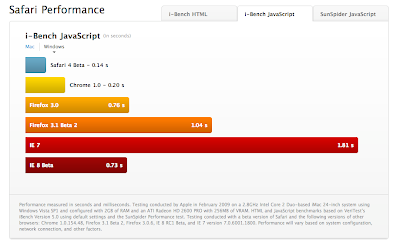
Safari already renders sites pretty fast but the new Nitro Engine renders sites faster (theoretically, at least). Apple has some benchmarks, but why trust the benchmarks released by Apple itself? Let's wait for some third-party to do so.

Still, if you're interested in how much faster Safari is from the competition, it claims to be 30 times faster than Internet Explorer 7, 3 times faster than Firefox, and slightly, very slightly by just the thousandths digit, faster than Chrome. Don't know if this is true for real world conditions, but we'll see.

Native Windows Look and Feel
This is a big, big, big plus for Windows Safari users. Now Safari will adapt to Windows Aero or Windows XP's themes,a s well as their native fonts. Still, if you like the grey anti-aliased look of past Safari versions, you can choose that.
ABOVE: Windows Vista. BELOW: Windows XP.
Developer Tools
HTML coders can test web code on the spot with Safari's developer mode.

The Quintessential Awesome Bar
Firefox first offered the option for people to use the address bar to do almost anything. It can get you sites by name, by address, or by a snippet of the address.


Search Suggestions
Mac Safari offers the Inquisitor plug-in for this feature. Now, you probably wouldn't need it. Powered by Google, Safari automatically suggests search terms and search addresses.
Zoom ala iPhone
Multi-touch gestures on the new MacBooks are able to zoom text like the iPhone's version of Safari. You can also use this feature by clicking the Font increase button.
Better Standards Compliance- made even better
It passes the famous ACID test. A perfect 100.

October 29, 2008

Windows 7: Looks good so far

Windows Vista was crap when I first installed it in my computer. I mean, I was very excited about Vista at first if you want my honest opinion, but after seeing that my USB Bluetooth was not compatible with it, I didn't mind at first. And then, there went the Handycam and Sony Picture Package software's compatibilities. And it's mind-numbingly slow.

"Ugh, can't this get any worse?," I asked myself. So I downgraded to XP and now I'm happy with a Mac, with Windows as a gaming platform more than a productivity, or all-around for that matter, platform.
Now, Microsoft promises Windows 7- the next Windows to be released in 2010- to be less bloated, and better to use while retaining the appealing interface design. And for the first time in a long time, I'm believing in Microsoft's promise. No really, making the jump to 7 seems like a very reasonable idea in the future in my opinion, and that's because of these few adjustments (using pictures stolen from C|Net and is subject to change since this is pre-alpha):

Universal Ribbon Interface
Love it or hate it, the Ribbon interface is probably the future of Microsoft products, so I guess we better learn now. Perhaps I'll grow to love it too, so yes, I'm gonna resolve my differences with it and embrace it. Below is a picture of the new Paint.
Now with Crop!

Adjustable User Account Control
Instead of being able to either turn the damned feature on or off, you can now adjust how annoying User Account Control has to be. Hey, Mac has this too but less annoying. If Windows 7 can do that, I'm soo jumping ship from XP. Otherwise, sorry, this safety feature was just headbang-inducing back then.

Internet Explorer 8
I know that IE7 opens quick, but its standards compatibility is crap, and sometimes, the performance is just... sluggish. IE8 may (and will) change all that, and since it was 6 months ago when I first tried its beta (and it f**ed up my computer and I had to perform a System Restore), I'll just wait and see what happens in the end.


No more Windows Sidebar
I like the idea of the Windows Sidebar, I liked how it worked in Vista, but I liked it only when I installed Vista through Boot Camp on a MacBook, because it was virtually unusuable in my dedicated Windows computer. Now, you can put gadgets freely anywhere in the Desktop.

And while you can also drag widgets or gadgets onto the Desktop even with the current version of Vista, you'd still have to have the Sidebar on, and I can't have that, so I want to have this.

Bluetooth File Transfer Wizard
Bluetooth File Transfer had to be installed using third-party software based on my experience, so now, like the Macintosh, Windows 7 comes with a built-in File Transfer program for Bluetooth devices. Right now, it's only file transfer, but Microsoft promises to add more Bluetooth services.
Sticky Notes!
Recycle paper! Save the trees! Use digital post-it notes!

And while Macs have been offering for almost a decade, the new Sticky Notes application will be very useful to many. Need to remind yourself of a task? OK, use Sticky Notes.

And for now, these are some of the promising enhancements being made to Windows. Fix it, Microsoft! Fix it now!

September 17, 2008

iTunes 8: Is it really Genius?

Way back even before the September special event held by Apple to announce iTunes 8 and the new iPods, several rumors and leaks have already popped up about a sort of "Genius" feature included in the iTunes 8 upgrade. Like the popular websites Pandora and Last.fm, the feature tries to create a playlist that it thinks sound great together with this one song you yourself pick. Does it work? What about the other features in iTunes 8? Well let's see then...

Genius
This is the most advertised feature but does it work?

Well, it actually depends on how many songs (or rather, song genres) you actually have in your library.

But it's not exactly activated at first launch, though. First, you'll have to send your entire library to Apple, so they can process it and determine which songs sound great with each other. Of course, you don't need to fill in some private information, but if hackers found a way to access your computer via this feature, (because Apple sends information back to you) I'll be damned.
Anyway, once you activate Genius, you can plug in any upgraded iPhone 3G, upgraded first generation iPod touch, 2nd generation iPod touch, 4th generation Nano and 6th generation Classic to activate the feature in those machines. Besides that, you can now use that new atom button thingy below.


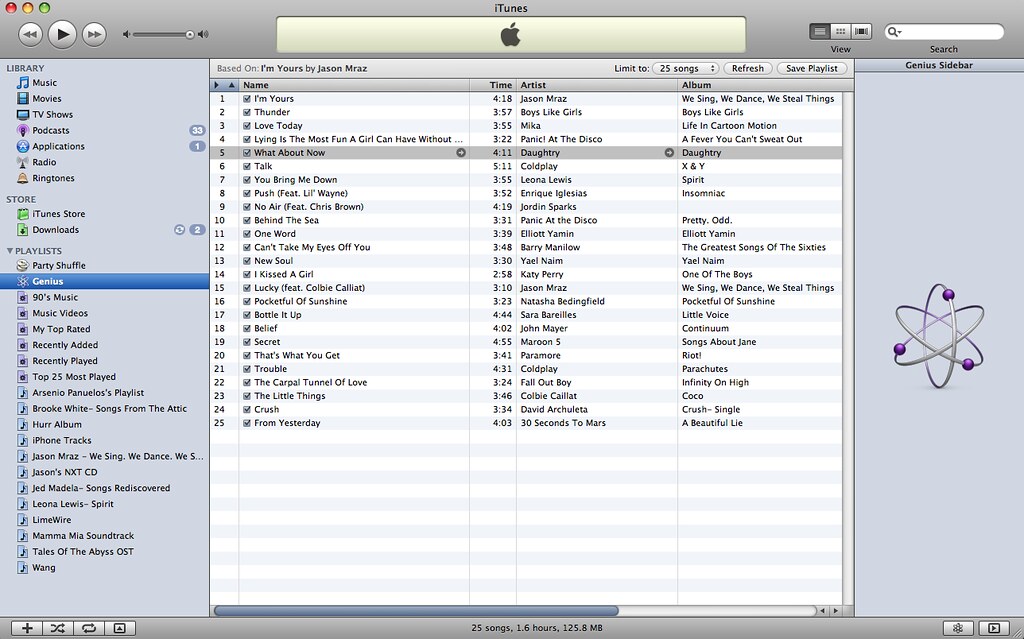
You first play a song- any song- and click that button so you can let iTunes generate a "Genius playlist". I based my first ever Genius playlist on Jason Mraz's "I'm Yours", and the results are snappy but some of the choices made are pretty questionable.
Panic! At The Disco? Daughtry? Fall Out Boy? Wait, I never knew they'd potentially sound good alongside something like "I'm Yours"!
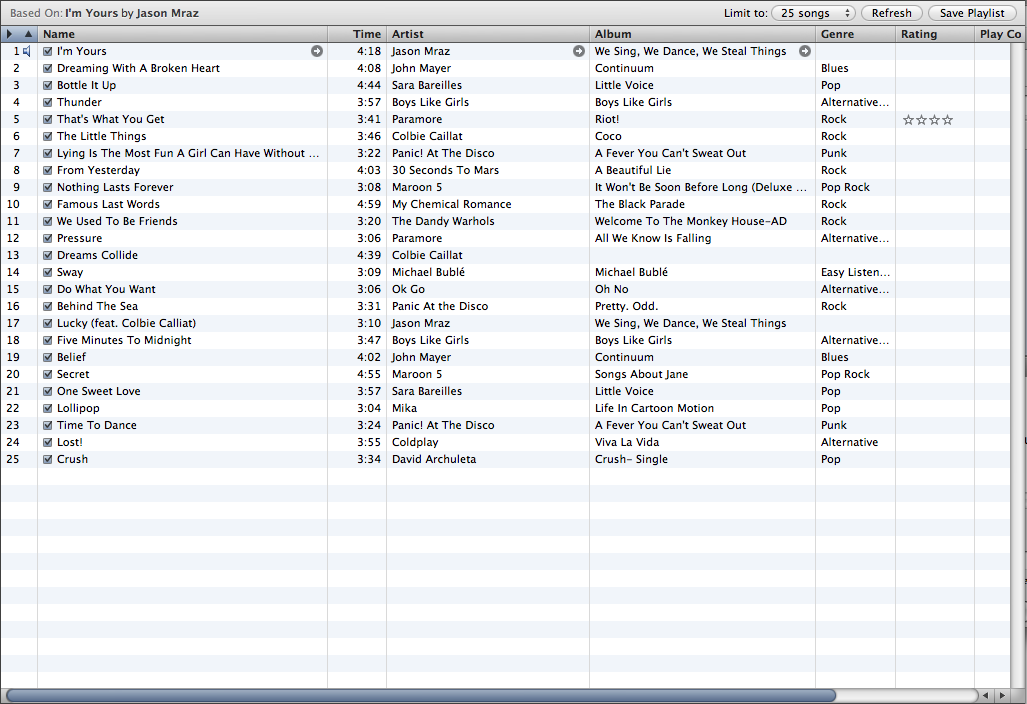
Still, I have to give effort points to the system, and really, I don't blame it for the choices since I'm more of a rock/alt fan than pop. Still, if you're unsatisfied with the results, you can always Refresh it. And when iTunes gives you that perfect combination, you can Save that playlist (although you can still Refresh it anyway) and sync it to your iPod.

So I tried putting more varieties of songs into the library, then updating Genius, and what do you know? It became smarter. The questionable choices were less, and the playlist was a lot better.
If you hate Genius though, I won't blame you. It's very much new, so if you give it enough time, and if a lot more people use it, the system will become smarter. It's still off to a great start regardless.
New Browsing mode
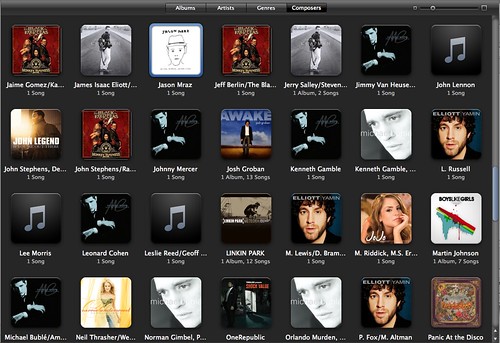
Back then, it was just that "spreadsheet" style of music browsing. It was pretty boring, even with Cover Flow. Now, Apple gives the browsing style an overhaul. The spreadsheet style is still there for those who opt for it, but for those who want a new way to browse their music, they can use the revamped Grid view.
If you're a Mac user, you'll notice that the design is reminiscent to that of iPhoto. And if an artist has, say, 2 or 3 albums, you can look at them by pulling the mouse cursor up or down, left or right. To play the whole album or artist, you can just click the "Play Album" button that appears when you hover your mouse over it. You can resize the size of each album cover (and the captions underneath them) if you're blind, and you can sort them by Artist, Genres, Composers and Albums.
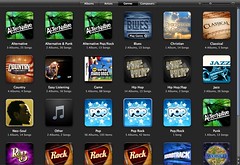
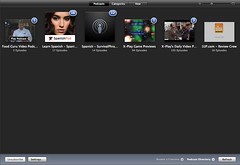

(AT TOP: You can view albums by Genre or; BELOW: ...get this view in the Podcasts, TV Shows and Movies menus. Noticeable in the Podcast menu are blue numbered circles marking the number of unwatched/unheard podcasts.)

New Visualizer
I don't know if you still use a visualizer in this day and age (I sure don't), except for Windows Media Player fans (they have no choice), but if you like them, you will like the new Visualizer Apple put in the new version. It's actually very pretty if you ask me.
But as I said: I don't think anyone would be using this very often. Especially since it's a...

Memory Hog
iTunes has a reputation of being a big memory hog. Unless you're running a Mac, not all processes run silky smooth in iTunes 8. It's slow, it's unresponsive, and damn, it just brings CPU usage up the roof. Heck, it causes the Blue Screen of Death in Vista! That can't be good. Of course, Apple has re-uploaded a fixed version of the Windows iTunes, but this just makes me ask whether Apple even tests its software before releasing it to the public? Surely, you should like any normal company? Or maybe your Windows developers just got lazy or something?

A hassle to download
It's like really HUGE! It's ginormous! It's a music and video player for God's sakes! Even VLC is only like 4-5MB's or something! I'd accept 20MB, but 60MB is like... a real hassle to download even on a broadband network. Apple needs to reduce the file size for this thing, damn it.

Overall
Genius needs a bit of time to mature, but it's off to a good start. The new view is welcome, and the visualizer is really beautiful, but kind of pointless. I'm not sure why Apple still hasn't fixed the memory leaks and all, and they sure haven't reduced the file size of this beast, but other than that, this upgrade is pretty nice- especially if you want to buy a new iPod (or upgrade your iPod touch or iPhones), but for other people who still don't plan to buy a new iPod or upgrade their existing iPod touch or iPhones can stick to iTunes 7 if they so choose to. Genius isn't really that much of a reason to download in the first place, but it's still a really fun feature to toy with.

Of course, you have the standard music and (limited) video playing options, and they work as they should. Aforementioned hogging may cause a broken listening and viewing experience at times, though.

Rating: 7.5/10
 
Elegant de BlogMundi